
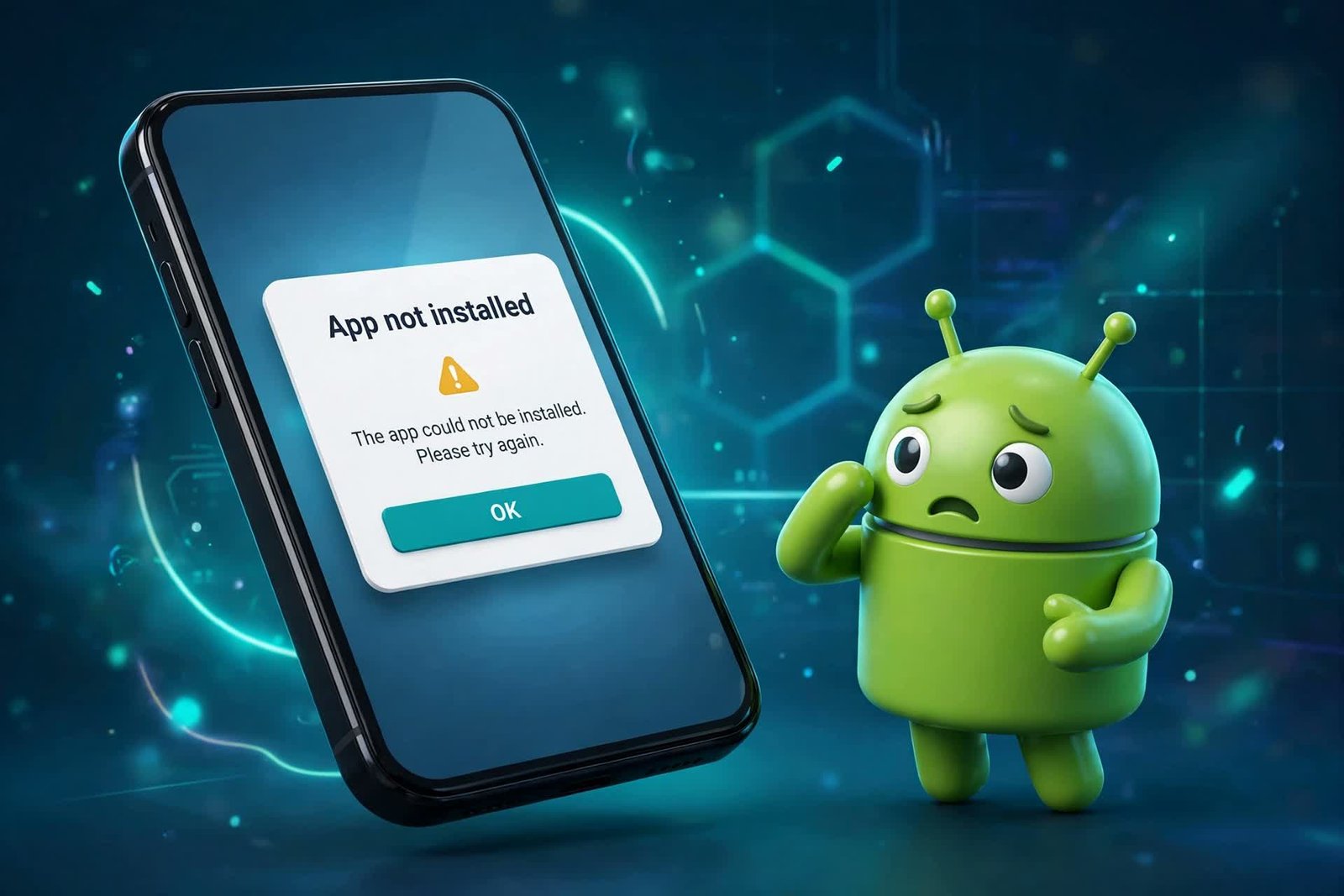
Few things are more frustrating than downloading an APK, tapping Install, and getting the dreaded “App not installed” message with no explanation. The good news: this error almost always has a simple cause, and this guide walks you through all seven of them — in the order you should check — so you can fix “App not installed” error Android shows when an install fails.
What “App Not Installed” Actually Means
Android shows this generic error whenever an installation fails after the package was accepted. It does not tell you why it failed, which is why the fix is a process of elimination. In 2026, the causes are the same handful of issues: storage, file corruption, conflicting signatures, permissions, or OS compatibility.
Work through the fixes below one by one. Most people solve it by fix #3.
Fix 1: Free Up Storage Space
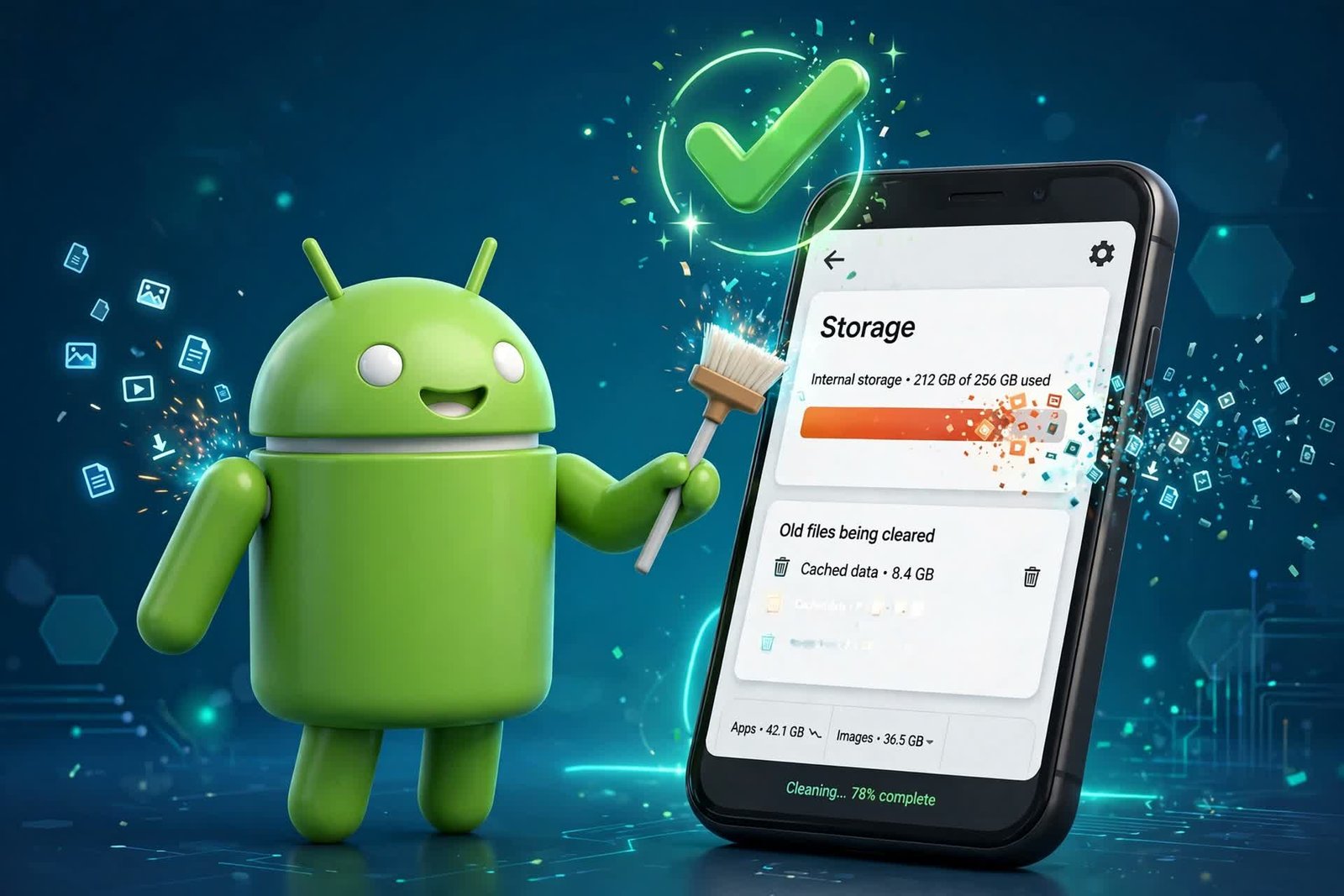
The most common cause. Android needs free internal storage not just for the app, but for the temporary extraction of the APK during installation.
- Check Settings > Storage — if you have less than 1–2 GB free, clear space first.
- Delete unused apps, large videos, or old downloads.
- Try installing again.
Note: Installing to an SD card does not bypass this — Android still stages the install on internal storage.
Fix 2: Re-download the APK (Corrupted File)
A partially downloaded or corrupted APK is the second most common cause. Signs: the file size looks unusually small, or the download finished suspiciously fast.
- Delete the APK file completely.
- Download it again from a trusted source, preferably over stable Wi-Fi.
- Compare the file size with what the source lists — if they don’t match, the file is incomplete.
Fix 3: Uninstall the Old Version First (Signature Conflict)
This is the big one for gamers who sideload. If a version of the app is already installed — especially one signed by a different developer certificate (for example, a Play Store version vs. a modded APK) — Android will refuse to install over it and just say “App not installed.”
- Go to Settings > Apps and uninstall the existing version of the app.
- Warning: this deletes the app’s data. Back up saves first if the game supports cloud save or manual backup.
- Now install the new APK fresh.
If you were trying to update an app you installed from our guide on updating APK files manually, this is very likely your issue.
Fix 4: Enable “Install Unknown Apps” for Your Browser
If the permission was revoked (or never granted), the install can fail at the system level.
- Go to Settings > Apps > Special app access > Install unknown apps.
- Find the app you used to download the APK (usually Chrome or your file manager).
- Toggle Allow from this source ON.
For the full safe-installation walkthrough, see our guide on installing APK files safely.
Fix 5: Check Android Version Compatibility
Some APKs target newer Android versions than your phone runs. A game built for Android 14 will not install on a phone stuck on Android 10.
- Check the APK’s listed minimum Android version on the download page.
- Check your version in Settings > About phone > Android version.
- If your phone is too old, look for an older version of the app built for your OS — or use a lightweight alternative.
Fix 6: Clear Package Installer Cache
Rarely, Android’s own installer gets stuck with corrupted cached data.
- Go to Settings > Apps > Show system apps (tap the three-dot menu).
- Find Package installer (it may be called “Package Installer” or “com.android.packageinstaller”).
- Tap Storage > Clear cache (do not clear data unless cache alone doesn’t work).
- Retry the installation.
Fix 7: Disable Play Protect Temporarily (Last Resort)
Google Play Protect occasionally blocks legitimate sideloaded apps it doesn’t recognize. This should be a temporary diagnostic step only — re-enable it afterward.
- Open the Play Store > Profile > Play Protect > Settings.
- Turn off Scan apps with Play Protect.
- Try installing. If it works, the APK was being flagged.
- Turn Play Protect back on immediately, and only keep the app if you are certain the source is trustworthy.
Fixes That Do NOT Work (Stop Wasting Time)
- Restarting the phone rarely fixes this specific error on its own.
- Renaming the APK file does nothing.
- Moving the APK to a different folder does nothing.
- Factory reset is drastic overkill — the cause is always one of the seven above.
When to Give Up on That APK
If all seven fixes fail, the APK itself is the problem: wrong architecture (ARM vs x86), a broken build, or a file that was never a valid app package. Delete it and get the app from the Play Store or the developer’s official site instead. No file is worth the security risk of forcing a broken package to install.
Frequently Asked Questions
Why does “App not installed” appear with no details?
Android’s installer deliberately shows a generic message. The actual failure reason is logged in the system, but reading it requires developer tools — which is why elimination (this guide) is the practical approach.
Can this error damage my phone?
No. A failed install does not install anything, so your phone is unchanged. The error itself is harmless; the risk is only in where you got the APK.
Does this error mean the APK has a virus?
Not necessarily. Most “App not installed” cases are storage, corruption, or signature conflicts — not malware. But if the APK came from an untrusted source, scan it with VirusTotal before trying again.
Will clearing data of Package Installer delete my apps?
No. Clearing the cache of the system Package Installer only removes temporary installer files. Your installed apps and their data are untouched.
Final Thoughts: Fix App Not Installed Error for Good
“App not installed” looks mysterious, but it is almost always storage, a corrupted download, or a signature conflict with an existing version. Start with fixes 1–3 — they solve the problem for the vast majority of users. And once your APK installs cleanly, keep it healthy with safe sideloading habits so you don’t meet this error again. Work through the seven fixes above in order to fix app not installed error without the guesswork.